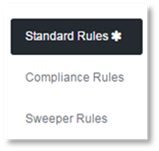
To view the Rules, select the tab for the type of Rule you wish to view:
- Standard
- Sweeper
In the first search field, select which Rules you wish to display:
– Show all to display all Rules.
– Show active to display only the currently active Rules.
– Show inactive to display only the inactive Rules.

The Rule searches can be narrowed down by adding:
- The site you wish to view the Rules for. Example: Bellevue.
- Description of the Rule
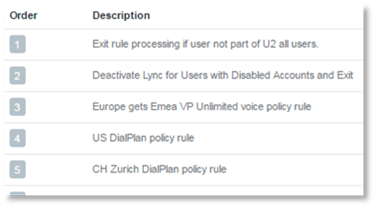
- The policy name of the Rule.
Policy names are selected from the Lync or Skype for Business topology and correspond to the name the topology administrator gave to the policies as they were being created.
- Policy Type.
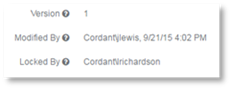
If a Provisioning Solutions user is editing Rules, the Rules are locked to ensure no other user can edit the Rules simultaneously, ensuring efficient Rules management. The Rules Management page displays who the Rules are locked by and who last modified the Rules, and date stamps the modification.