NOTE:
A partial string search may search for a phone number.
Example:
If 123 is entered into the field, both of the following would match - +1234545 and +16745123
To view phone numbers in the PowerSuite Phone Number Management dashboard:
1. Select Phone Numbers from the menu in the left-hand pane of the dashboard.
2. Enter information in any of the fields:
NOTE:
All the fields are optional.
- Phone Number
- Country
- Endpoint type
- Site
- Provider
- Status
- Extension
- Endpoint ID
- Line URI/Name
-
Allocation Type
- Phone Number Class
3. Select Search.
A table with the following information will be displayed.
- Phone number
- Extension
- Status
o Used
A phone number with one or multiple allocations is used
o Available
A phone number without allocation is available
- Allocation Type
o Reserved
o Assigned
o Tomstoned
- Endpoint Type
- Provider
- Phone Number Class
- Country
- Last modified
Export option is available to download the search results in csv. Format.
4. Select a table row:
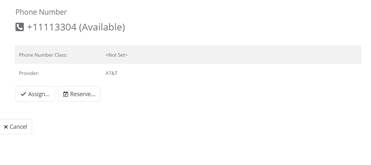
a. If the status for the row is Available, the phone number is displayed.
i. Select Assign to assign the phone number.
ii. Select Reserve to reserve the phone number.
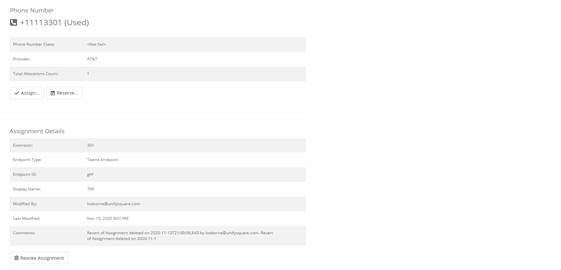
b. If the status for the row is Used, then it means that the phone number allocation can be in either of the following states:
- Reserved
- Assigned
c. The following phone number allocation information is displayed:
- Extension
- Endpoint Type
- Endpoint ID
- Display Name
- Modified By
- Last Modified
- Comments
If the phone number is Assigned:
i. Select Revoke to revoke the allocation.
ii. This will transition the phone number allocation to the tombstoned state.