
To assign a phone number:
1. Follow the steps in searching and viewing a phone number to display the phone number and the details.
2. On the Phone Number page, you will be able to create an assignment or reservation.
3. The “Show All Allocations” button will be displayed only when there is more than one allocation for the Phone Number. Clicking on it displays all allocations on the search page.
1. Select Assign.
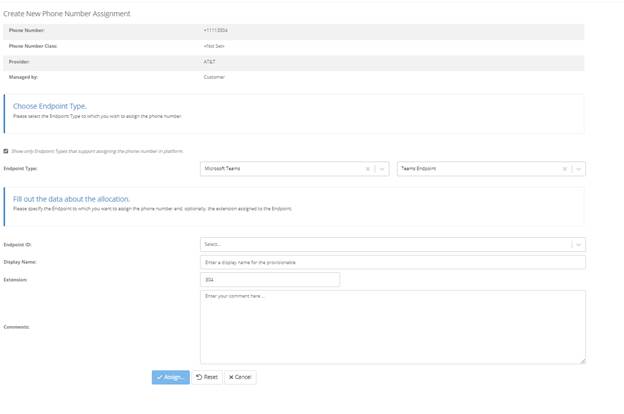
2. NOTE:
a. Extension editing availability depends on the platform.
3. Select Show only Endpoint Types that support assigning the phone number in platform.
a. if DID agent is installed. This will create the assignment on the platform in addition to in Phone Number Management.
4. Select the platform that you want to assign the phone number to from the first drop-down menu.
5. Select the Endpoint Type that you want to assign the phone number to from the second drop-down menu.
6. Enter the:
a. Endpoint ID
b. Display Name
c. Extension
d. Comments
7. Select Assign.
a. NOTE:
b. If Teams is correctly configured in PowerSuite and DID Management for Teams is enabled, it will not be possible to enter a Display Name as this file will be auto filled by PowerSuite.
c. Extension field is disabled if selected platform doesn’t support it (e.g., Microsoft Calling Plan).