For details on adding individual Actions and Conditions navigate to Modifying Rules.
The following is an example of creating a simple Rule with just a single Condition and a single Action. This example Rule matches all objects with country (c) value US. The Rule sets the voice policy to 6:
1. Navigate to the Rules Tab.
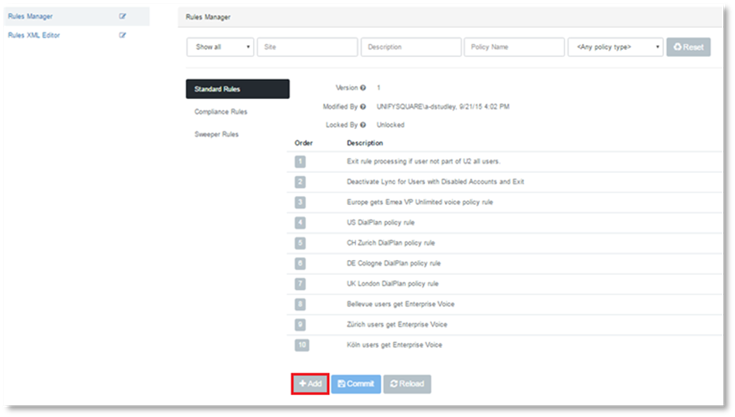
2. Click on the Rules Manager tab in the navigation sidebar.
3. Click Add.
The following page will display
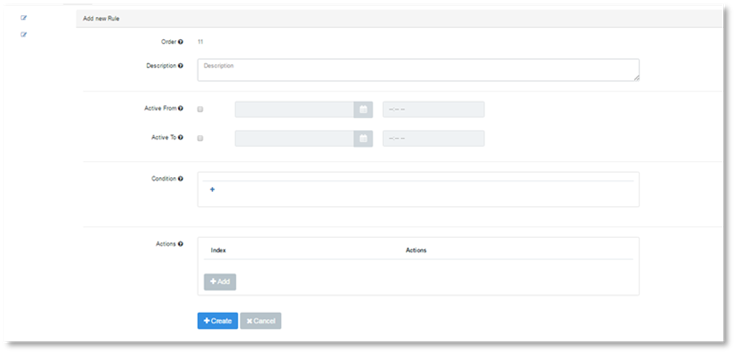
4. Enter a description for the new Rule in the description field.

5. Optional: Enter the Active To date.
6. Optional: Enter the Active From date
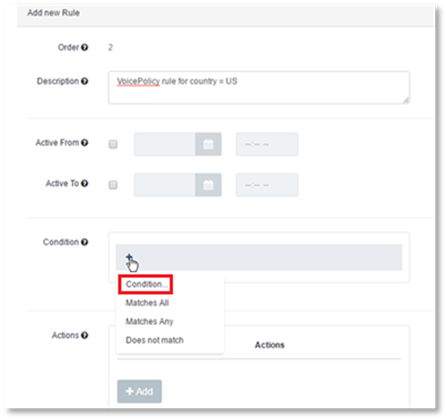
7.
Click on the  button
in the Condition field.
button
in the Condition field.
8. Select Condition from the dropdown menu.
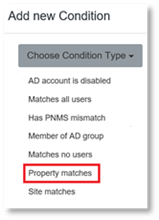
9. Click on Choose Condition Type drop down menu arrow.
10. Select Property matches from the drop down menu.
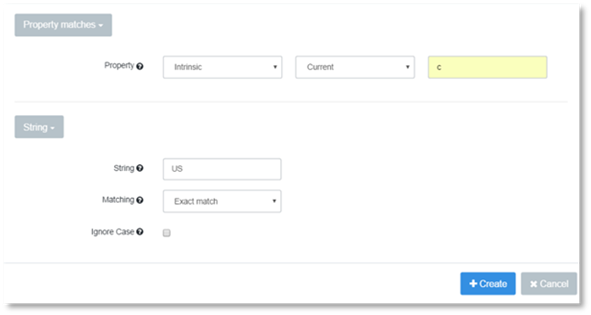
11. Set the Property to Compare to c.
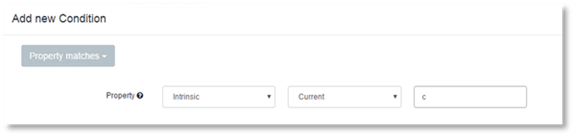
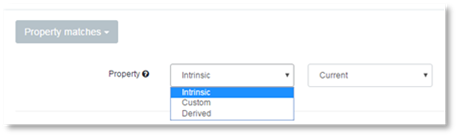
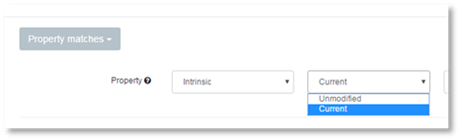
12. Ensure property fields are set to the default Intrinsic and Current.
13. Enter US in the String field.
14. Click Create.
15.
Click on  in
Actions field.
in
Actions field.
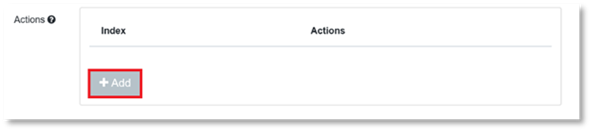
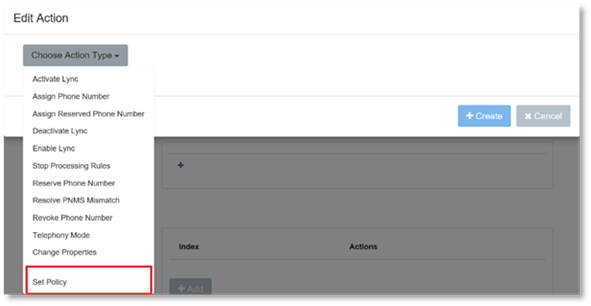
16. Select Set Policy from the Choose Action Type dropdown menu.
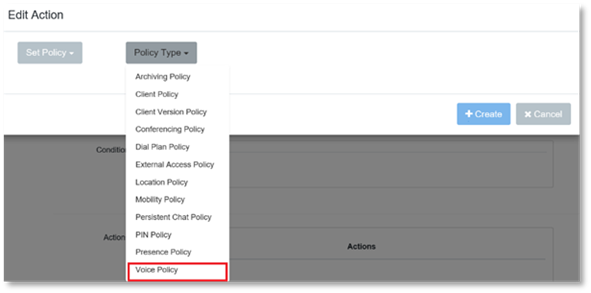
17. Select Voice Policy from the Policy Type dropdown menu.
18. Check the Default Value check box.
19. Select the Default Value.
20.
In the Allowed Policy Values field, select the same policy that was added in the
Default Value field and click  .
.
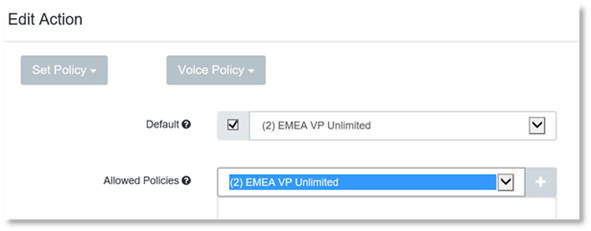
21. Click Create. The details of the new Rule will be displayed.
22. Click Cancel to return to the Rules Management screen.
23. Click Commit.