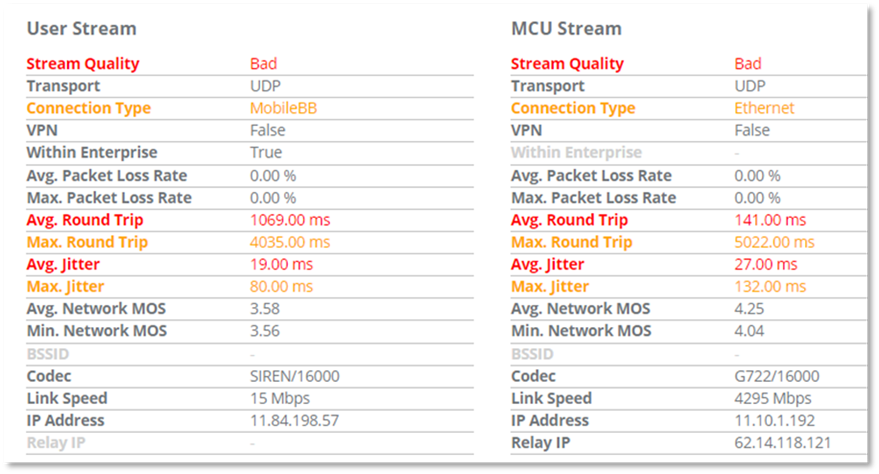
The Network column of the table provides details of the network used by the user. The User Stream information is always displayed and applies to the audio sent by the user. When a conference participant’s data is being viewed the MCU stream displays detailing the audio sent by the MCU.
If there is a network issue, it is highlighted by a color change from green to yellow or red. The table below describes the Network information provided for both the MCU and User streams, additionally the table provides the thresholds that Microsoft utilizes to determine the classification of network calls into good, poor or bad.
Network column of the table provides details of the network used by the user. If there is a network issue, it is highlighted by a color change from green to yellow or red. The table below describes the Network information provided, additionally the table provides the thresholds that Microsoft utilizes to determine the classification of network calls into good, poor or bad.
|
Information Provided |
Description |
Threshold Values | ||
|
Bad Calls |
Poor Calls |
Good calls | ||
|
Stream Quality |
Microsoft’s classification of the overall call or conference and whether it is deemed to have good, poor or bad audio quality issues. |
> 5% |
>2% |
<2% |
|
Transport |
Details the Network Protocol type: - Transmission Control Protocol (TCP) - User Datagram Protocol (UDP) (Optimal protocol type) |
N/A |
N/A |
N/A |
|
Connection Type
|
Details the quality of the calls made by the user over the time period. The connections are broken down by type: - Wired - Wi-Fi - Mobile |
N/A |
N/A |
N/A |
|
VPN |
Indicates if the user is using VPN. Making calls over VPN is not advised, as the VPN can introduce audio quality issues. |
N/A |
N/A |
N/A |
|
Avg. Packet Loss |
Average Packet loss over the call, will cause the audio to be distorted or missing (on the receiver end). The threshold used is provided by Microsoft. |
>5% |
>2% |
<2% |
|
Max. Packet loss |
Maximum Packet loss over the call, will cause the audio to be distorted or missing (on the receiver end). This threshold used is provided by PowerSuite. |
N/A |
>10% |
<10% |
|
Avg. Round Trip |
When round trip is high, users will likely hear the words, but there will be delays in sentences and words. The threshold used is provided by Microsoft. |
>500 ms |
>200 ms |
<200 ms |
|
Max. Round Trip |
When round trip is high, users will likely hear the words, but there will be delays in sentences and words. This threshold used is provided by PowerSuite. |
N/A |
>600ms |
<600ms |
|
Avg. Jitter |
Jitter (ms) measures the variability of packet delay and results in a distorted or choppy audio experience. The threshold used is provided by Microsoft. |
>25 ms |
>15 ms |
<15 ms |
|
Max. Jitter |
Jitter (ms) measures the variability of packet delay and results in a distorted or choppy audio experience. This threshold used is provided by PowerSuite. |
N/A |
>35 ms |
<35 ms |
|
Avg. Network MOS |
Summary of the overall average impact of the network to audio quality. If this is low then this will indicate the network has caused audio quality issues. |
N/A |
N/A |
N/A |
|
Min Network MOS |
Summary of minimum audio quality. If this is low then this will indicate the network has caused audio quality issues. |
N/A |
N/A |
N/A |
|
BSSID |
Identification number of the access point for the Wi-Fi/wireless connection. |
N/A |
N/A |
N/A |
|
Codec |
The name of the codec used. |
N/A |
N/A |
N/A |
|
Link Speed |
The network link speed, in bits per second. If the link speed is too low, audio quality problems may result. |
N/A |
N/A |
N/A |
|
IP Address |
IP Address of the endpoint. |
N/A |
N/A |
N/A |
|
Relay IP |
IP Address of the Audio/Video (A/V) Edge service used. |
N/A |
N/A |
N/A |